Guide › What's new
What's new
Every Rotara release, newest first. Rotara updates itself; to check now, click the menu bar icon and choose Check for Updates.
Rotara 1.5
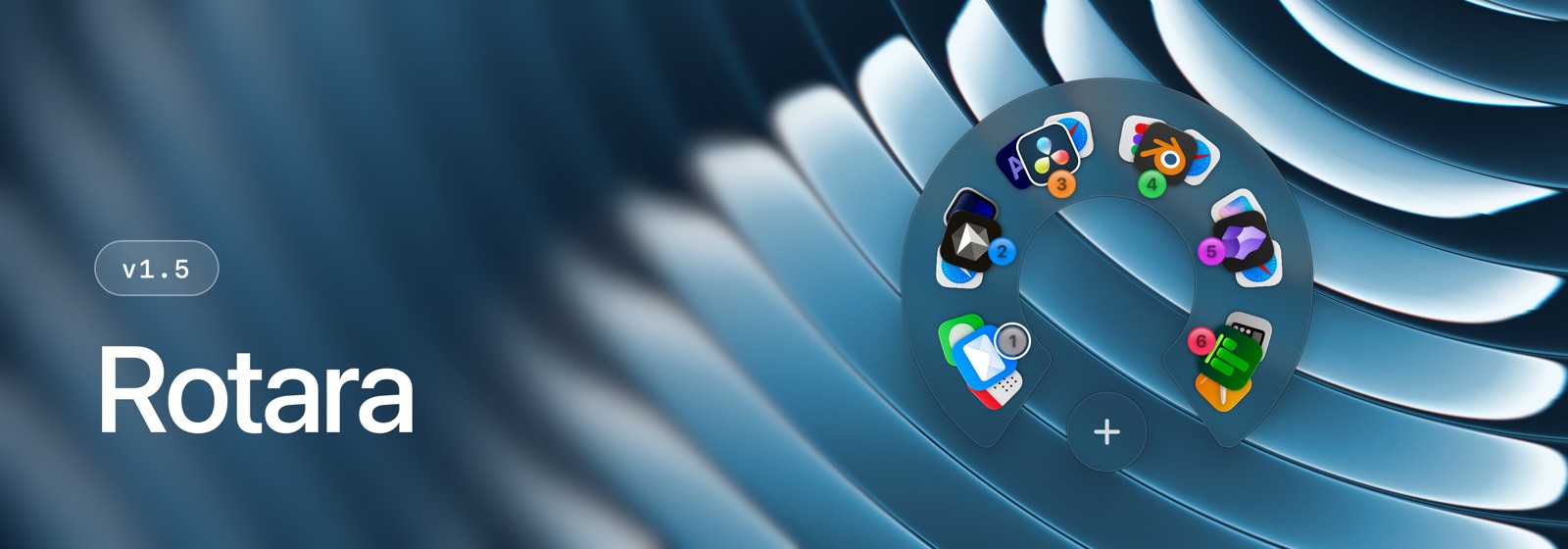
New
- Liquid Glass. On macOS 26 and later, the pies, their centre label and the workspace pill use Apple's Liquid Glass. Settings → Pie Look & Feel → Material slides from the old frosted look to fully clear glass.
- Workspace colours. Pick a colour for each workspace from the dots under its name when you rename it, or in Settings → Workspaces. Its badge, the menu bar and the pies all follow.
- Tab goes back to your last app. In the app pie, Tab now jumps to the app you used last, then the one before, like ⌘Tab on the Mac. The window pie does the same with windows. Icons stay where they are, and a faint outline shows where the next Tab will land.
- Send Feedback. Write to us without leaving Rotara: Send Feedback at the bottom of the Settings sidebar, or in the menu bar menu.
- Every shortcut in one place. All shortcuts are now changed in Settings → Keyboard. Each pie's page shows its shortcut and links there.
- Version history. Every release's notes are on one page in the guide: What's new.
Better
- Move a window by letting go. Hold the workspace pie's key, point at a workspace, add Shift and let go: the window moves there. It works even if Shift comes up a moment before the key.
- Update checks are quiet. "You're up to date" shows in Settings → About instead of a box that blocked Rotara until you closed it.
- Sweep fast around a pie and the highlight takes the short way, instead of swinging back over the top.
- Opening a pie closes the rename field (keeping what you typed) instead of drawing over it.
- Closing a pinned app from the app pie no longer jumps the highlight to the next app before you move the pointer.
Fixed
- Apps that turn off their window's close button, like Antinote, now close with W and the ✕ in the pies.
- An app that belongs to a workspace and reopened in the background showed up in the workspace you were in until you clicked it. It now stays in its own.
Rotara 1.4.3
- A redesigned License page.
- Fix: apps that belong to a workspace. If an app reopened with a different window than it had when it quit, the window stayed where it opened. It now goes to the app's workspace, and Rotara takes you there if you opened the app yourself.
- First-run steps. New installs tell our server how far the first run got (for example, which welcome tour cards were shown), so we can see where people get stuck. Nothing about your windows, apps or workspaces is sent. Details are on the privacy page.
Rotara 1.4.2
- Apps that belong to a workspace. Give an app a workspace of its own and its new windows always open there. Set it in Settings → Workspaces (the ⓘ on a workspace), from the menu bar menu, or with K in the app pie. Those apps wear the workspace's number in the app pie. If one isn't running it shows faded, and a click opens it.
- Open a workspace's apps. In the workspace pie, hover a workspace and press O to open its apps that aren't running, in the background. In the app pie, O opens the ones for the workspace you're in.
- Pick with any key. Space picks the item in a pie by default. You can change it in Settings → Pie Look & Feel, so Return can pick and Space can rename. Every key in Settings now has an ⓘ that opens its part of the Rotara Guide.
- A new Settings window. It has a search field (⌘F), new icons, and quieter pages. ↑ and ↓ move through the sidebar.
- More for automation. rotara:// links take
number=for move and delete, anddisplay=for switch, move and new, so Keyboard Maestro and Shortcuts can pick a workspace by number and a display. - Fixes. Slow apps like DaVinci Resolve keep their place behind your other windows when you come back. Long workspace names no longer break in the middle of the pie. The menu bar badge no longer shows a clipped shadow.
Rotara 1.4.1
- The Rotara Guide. Every key, click and feature is now explained at getrotara.app/guide. Each Settings page has a Guide link to its part of the guide, and the menu bar menu has Rotara Guide. Settings now shows only the things you can change.
- Heavy apps stay in their place. A slow app like DaVinci Resolve no longer ends up in front of your other windows when you come back to its workspace.
Also new since 1.3, in Rotara 1.4
- Each display on its own. Turn on "Each display switches on its own" in Settings → General, and switching a workspace changes only the display the pointer is on.
- Run a Shortcut on switch. Give any workspace a Shortcut in Settings → Workspaces, and it runs each time you switch there. It gets the workspace's name, so one Shortcut can change your focus mode, wallpaper or HazeOver for each project.
- Safari profiles per workspace. A new Safari window opens in the profile you last used in that workspace.
- Bring an app here with Shift. Shift-click a Dock icon to bring that app's window into the workspace you're in.
- Windows stay in order. Opening a new window no longer shuffles the ones behind it.
- Calmer pies. Tab and the arrow keys start from the workspace you're in. After you hide, close or delete something in a pie, nothing stays highlighted, and letting go just closes it until you point at something else.
- Update dot. A small blue dot on the menu bar icon tells you an update is ready, and the menu's first item installs it.
- Small fixes. Clicking Finder at the bottom edge of the Dock opens a window where you are, and the workspace pill shows above the blue ring after a move.
Rotara 1.4
- Each display on its own. Turn on "Each display switches on its own" in Settings → General, and switching a workspace changes only the display the pointer is on.
- Run a Shortcut on switch. Give any workspace a Shortcut in Settings → Workspaces, and it runs each time you switch there. It gets the workspace's name, so one Shortcut can change your focus mode, wallpaper or HazeOver for each project.
- Safari profiles per workspace. A new Safari window opens in the profile you last used in that workspace.
- Bring an app here with Shift. Shift-click a Dock icon to bring that app's window into the workspace you're in.
- Windows stay in order. Opening a new window no longer shuffles the ones behind it, and heavy apps like DaVinci Resolve no longer jump forward when you switch back.
- Calmer pies. Tab and the arrow keys start from the workspace you're in. After you hide, close or delete something in a pie, nothing stays highlighted, and letting go just closes it until you point at something again.
- Update dot. A small blue dot on the menu bar icon tells you an update is ready, and the menu's first item installs it.
- Settings shows every shortcut. Each page now lists every key and click it covers, and Settings → Keyboard shows the rotara:// links for Keyboard Maestro, Raycast or scripts.
- Small fixes. Clicking Finder at the bottom edge of the Dock opens a window where you are, and the workspace pill shows above the blue ring after a move.
Rotara 1.3.7
- See where a window went. After you move a window to another workspace, the pill at the bottom says so: "Moved Safari to Work". If you went along with it, a blue ring flashes around the window.
- Shift works the moment the pie opens. Holding Shift before opening the workspace pie now counts as a move right away, and the move arrow shows for an app you've only just opened.
- Claude stays put. Claude for Mac is never paused in the background, isn't mistaken for a menu bar app, and keeps its workspace when it updates itself.
- Dock clicks at the very edge. Clicking an app at the bottom edge of the Dock opens a window where you are, instead of jumping to another workspace. Stickies now opens a new note where you are too.
- No surprise workspaces. A quick tap of the pie near the edge of the screen no longer picks the item under the pointer, so it can't make a new workspace by accident.
Rotara 1.3.6
- A cleaner corner. Rotara now covers the thin edges of tucked-away windows with a matching piece of your wallpaper by default. It's out of beta. On a live or video wallpaper, turn it on in Settings → General.
- More than one key for the workspace pie. Add up to two extra shortcuts in Settings → Workspace Pie.
- Your workspace in the menu bar. Optionally show the workspace's name next to the icon, and its coloured number badge from the pie. Both are in Settings → General.
- The real traffic lights. The close and minimize buttons on a hovered pie item are now drawn by macOS itself, so they look exactly like the ones on your windows.
- Tidier pies. The workspace pie shows each app once, however many windows it has. The window pie shows the window's letter right in the centre label.
Rotara 1.3.5
- Starts with your Mac. A new install opens at login, so your workspaces are there from the first minute. Turn it off any time in Settings → General.
- A simpler first run. The welcome card says it plainly: 14 days free, every feature, no account. The tour no longer changes how links open. Turn that on in Settings when you want it.
- A clear end to the trial. When the 14 days are up, Rotara opens its License page once, so you know where things stand.
Rotara 1.3.4
- ⌘ Caps Lock is instant. macOS holds Caps Lock back for a moment and drops very quick taps. Rotara now reads the key straight from the keyboard, so every tap and hold opens the pie the moment you press it.
- Works with any hyper key on Caps Lock. Hyperkey, BetterTouchTool, Raycast, Karabiner-Elements, or Caps Lock remapped in Keyboard settings: ⌘ Caps Lock opens the workspace pie, tapped or held, and Caps Lock on its own keeps doing what you set it to.
- Menu bar apps' settings in the app pie. Settings windows from menu bar apps that never show a Dock icon, like Hyperkey's, now show up in the app pie like any pinned app.
Rotara 1.3.3
- Works with a hyper key on Caps Lock. If Karabiner-Elements turns your Caps Lock into ⌃⌥⇧⌘ and a tap into Esc, ⌘ Caps Lock now opens the workspace pie. Tap it or hold it, as before, and Caps Lock on its own stays your hyper key.
- Pick other keys in the tour. When Rotara can't read Caps Lock (Hyperkey, or Caps Lock remapped in Keyboard settings), the tour says so and lets you choose another shortcut for the pie, and Settings explains why under the shortcut.
Rotara 1.3.2
- ⌘Tab brings all the app's windows forward, like the Mac's own switcher: picking an app from ⌘Tab or the app pie brings every one of its windows in this workspace to the front, in their order, with the one you used last on top. Before, only that last window came forward.
Rotara 1.3.1
- Float-on-top windows belong to their workspace. A Stickies note set to Float on Top now floats only over its own workspace's windows and goes away when you switch, like any other window.
- Hiding from the app pie works like ⌘H. The app's Dock icon dims, and the hide stays in the workspace you made it in.
- A hidden app looks normal everywhere else. Hide Mail in one workspace and it isn't dimmed in the others, even ones without its windows, so a click opens it right away.
- The app pie's "close its most recent window" key (W) is in Settings, and you can change it like the other keys.
- The menu bar menu's workspace numbers wear the same coloured badges as the workspace pie.
- Fixed: the workspace pie dimmed a hidden app in every workspace, not just the one it was hidden in.
- Fixed: windows could come back in the wrong order after switching to a workspace with an app you had hidden.
- Fixed: an app slow to answer (like Mail) could stay hidden in another workspace.
Rotara 1.3
- Pick your own keys inside the pies. Every action key (rename, delete, quit, hide, pin, close, minimize) can be changed in Settings, and an action can have more than one key.
- The pie moves smoothly. Close, quit or delete something with the pie open and the rest glide into their new places, right away.
- Hold the workspace pie for several actions in a row. While you hold its keys, + and the delete button keep the pie open, like the buttons in the app and window pies.
- Letters in the window pie. One app's windows look alike, so each now wears a letter (A, B, C), and you can drag them into the order you want.
- Letting go over a button picks its item instead of doing nothing.
- Tidier App Pie and Window Pie settings, laid out the same way, each with its own "Show the pie after" delay. The window pie follows the window-cycling shortcut you set in macOS.
- Fixed: ⌘Tab could skip Rotara's Settings window when three or more apps were open.
Rotara 1.2.8
- The pie stays open when you use its buttons. Hide, minimize or close an app's windows with the buttons on its icon and the pie stays put, so you can tidy several in a row.
- Showing a hidden app brings it to the front, ready to use, instead of leaving it behind your other windows.
Rotara 1.2.7
- The switch pill follows your fingers. Swipe with three or four fingers and the pill slides along with you. Like the Spaces swipe, it decides when you lift: past halfway it switches, short of that it springs back, and a quick flick switches either way.
- Pie size now reads 100% at the default, from 80% to 120%. The center label and the first-open tip grow and shrink with the pie.
- Pies reach further. A flick still counts 400 pt past the ring by default, up from 250. If you changed it in Settings, your setting stays.
- The center label is a proper capsule at every pie size.
- Hidden apps look hidden in the workspace pie, see-through as in the app pie.
- A new window no longer hides under the menu bar. It opens where the app's last window was, or just below the menu bar.
- The parked-window cover respects your dynamic wallpaper's setting (Light, Dark, Automatic or Dynamic) instead of guessing.
Rotara 1.2.6
- Workspaces come back after a restart or a logout. macOS quits your apps before Rotara, and each quit was taking its windows out of their workspaces, so everything came back in Main. Rotara now saves your workspaces the moment a restart begins.
- An empty workspace has an empty menu bar. Before, the last app's menu bar stayed up, and clicking it jumped back to the workspace you'd left.
- New blank workspaces are called "New Workspace", then "New Workspace (1)" and so on.
- Pies open without a stall on a busy Mac.
Rotara 1.2.5
- Several windows of one app keep their order. With two browser windows in a workspace, the one you left in front is in front when you come back. Before, a Chrome-based browser could swap them on every switch, or put its first window back on top.
- Workspaces remember their stacking when Rotara restarts or updates.
Rotara 1.2.4
- Workspaces come back the way you left them. Switching back puts every window in the order you last used it, even when a heavy app (a game engine, a video editor) is slow to respond, or you used the same browser in another workspace.
- ⌘Tab goes to the app you used last in this workspace, not one you just used somewhere else.
Rotara 1.2.3
- Smoother switches. The desktop no longer flashes between workspaces for a split second, and switching responds a little faster.
- Plugging in or unplugging a display no longer leaves hidden windows strung along the edge of your screen. They go back into the corner.
- A pinned app you hide stays hidden when Rotara restarts.
- New, in beta: cover the edges of tucked-away windows. Rotara hides other workspaces' windows by moving them to the bottom-right corner of your screen, and macOS always leaves a thin edge of each one showing. This covers those edges with a matching piece of your wallpaper. It's off by default: turn it on in Settings → General → Wallpaper. If something doesn't look right, please tell us with Send Feedback… in the Rotara menu.
Rotara 1.2.2
- Hiding or quitting an app keeps you where you are. After ⌘H, ⌘Q, or a click that hides the app in front, macOS picks the next app on its own, and that app could live in another workspace, so Rotara took you there. Now you stay, and this workspace's next app comes forward.
Rotara 1.2.1
- Clicking an app in the Dock opens it here the first time. With nothing of the app in this workspace, the first click sometimes took you to its other workspace or did nothing, and only the second click opened a window here. Seen most with Ghostty.
- Brighter pie buttons. Rename, hide, minimize and close are in full colour, like the window buttons on every Mac.
- Polish. Workspace numbers sit dead centre in their badges. The switch pill grows or shrinks smoothly to fit the next workspace's name. The light look's pie edge matches a system window's.
Rotara 1.2
- Workspaces come back exactly as you left them. Switching no longer hides apps, so windows keep their stacking order: the window that was on top is still on top, and the rest stay in the same order behind it.
- Hiding from the app pie only hides it here. Hide Ghostty in one workspace and it stays put in your others.
- Hide sticks while you hold ⌘Tab. Press H (or M in the window pie) on an item and let go without moving away: nothing gets picked, so it stays hidden.
- Minimize works in more apps. M and the yellow button now work in apps that ignored them, like Antinote.
- The window pie shows where you are. Its name tag has the app's icon and name, with the workspace under it.
- Empty workspaces survive a restart. Only you delete a workspace.
- Fixes. Slow apps such as Godot no longer get stuck off screen after a switch. Clicking an app in the Dock goes to its window in this workspace, even if you last used it in another one. The app pie no longer has M; minimize windows from the window pie instead.
Rotara 1.1
- New hover buttons in the pies. Hover an item and a small glass pill shows its buttons: rename and delete for a workspace, hide and close for an app, minimize and close for a window.
- Pinned apps get them too. Hover Spotify (or any pinned app) at the bottom of the app pie to hide it or close its windows.
- Closing is instant. The ✕ in the app and window pies closes right away, with no confirmation.
- The window pie (⌘`) opens as fast as ⌘Tab's. A quick tap still flips to the next window.
- ⌘Tab over an open pie now closes it and switches apps. Plain Tab still steps through the pie.
- Option+click in the app pie is gone. To hide an app, use its hide button or press H.